Knowledge Base
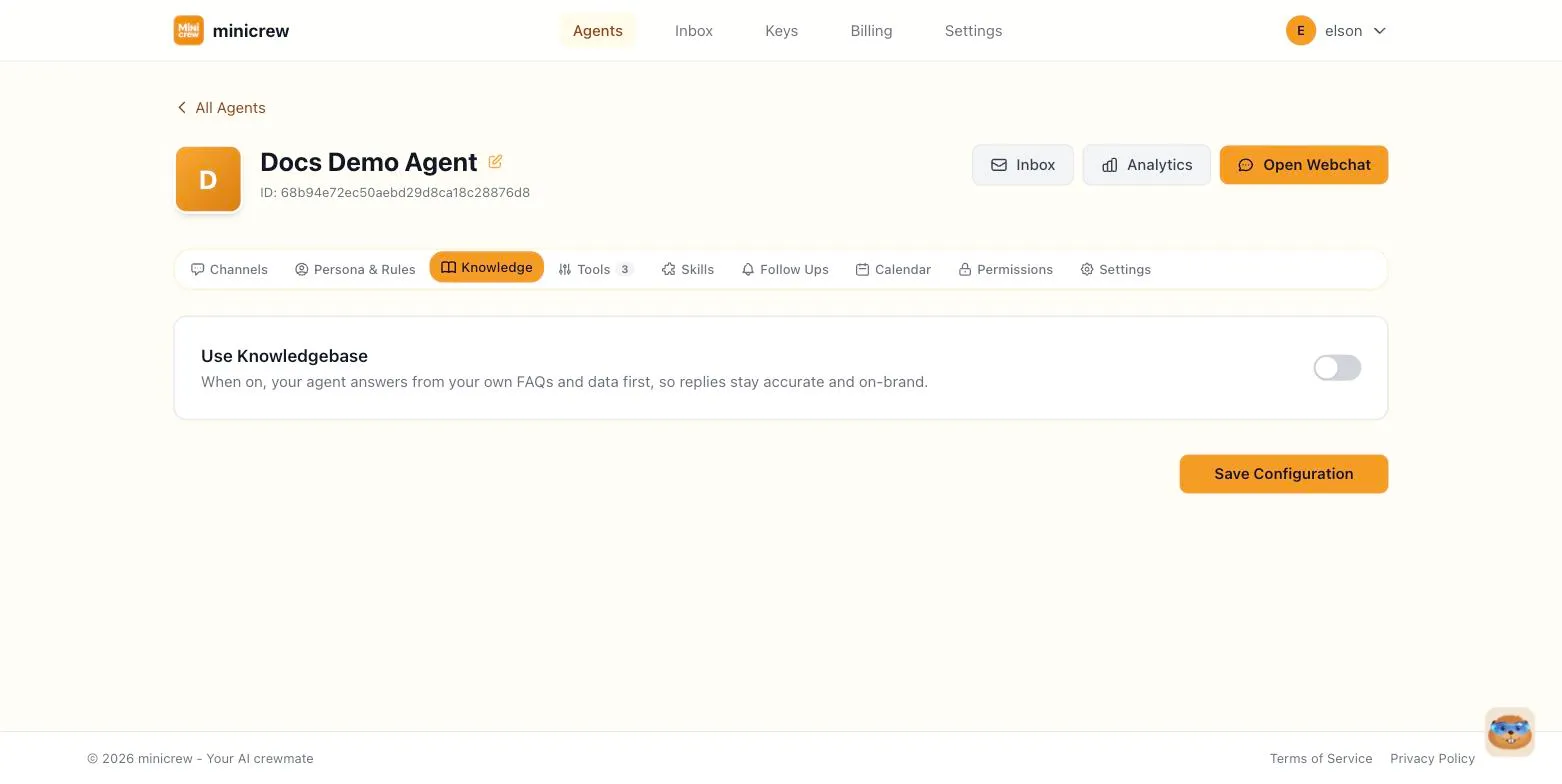
The Knowledge tab is where you give your agent saved answers, reference documents, and structured data it can pull from instead of guessing.
Turning it on
Section titled “Turning it on”Flip Use Knowledgebase on to reveal the rest of the tab. Once enabled, a stats bar shows how many FAQs and data sheets you’re using against your plan’s limits.
FAQs are question-and-answer pairs your agent can draw on. Each FAQ has:
- A question, plus optional question variants (different ways customers might phrase the same thing) so the agent recognizes it under different wordings.
- One or more answers — attach images, PDFs, or voice memos to an answer if useful (e.g. a price list photo).
- Optional tags for organizing.
- An answer mode: Fixed (the agent sends your exact wording, word-for-word) or Rephrase (the agent restates your answer naturally in its own voice, recommended by default; pricing figures are always preserved exactly, even in rephrase mode).
- An active/inactive toggle, so you can keep an answer without deleting it.
Use the search box to quickly find an FAQ, and the bulk-select checkboxes to activate, deactivate, or delete several at once.
Importing FAQs
Section titled “Importing FAQs”Rather than typing FAQs one at a time, you can bulk-import:
- Import from website. Give Minicrew a URL (e.g.
https://yourcompany.com/faq) and it crawls the page(s) and proposes FAQs for your review before committing them. - Import from PDF. Upload a PDF, like a brochure or price sheet, and Minicrew extracts candidate FAQs from it for review.
- Import from CSV. Upload a CSV of questions and answers. A downloadable CSV template is available if you’d rather prepare your own file. You can also export your existing FAQs to CSV as a backup or for editing offline.
Website and PDF imports run in the background — you’ll see a progress indicator, and the results wait for your review before anything is added to your live FAQ list.
Data Studio (sheets)
Section titled “Data Studio (sheets)”Switch to the Data Sheets sub-tab to work with Data Studio: spreadsheet-style tables your agent can read from, and write to if you allow it. Useful for inventory lists, price tables, booking logs, and similar structured data.
Turn on Use Data Studio to let the agent’s tools actually query these sheets during a conversation. This is independent of whether the sheets exist; you can build and edit sheets in the UI either way. The toggle just controls whether the agent can use them.
You can import a spreadsheet directly from Google Sheets via a picker, or build a sheet manually from the Knowledge tab.
When it’s worth the setup
Section titled “When it’s worth the setup”A customer-facing business agent gets the most out of this tab: FAQs cut down repeat questions, and Data Studio can hold live inventory or pricing so answers stay accurate as stock changes. A personal assistant usually needs less, maybe a handful of reference notes rather than a full FAQ library, since there’s no changing “customer” audience to serve consistent answers to. If your agent is purely internal (an ops helper for your own team), Data Studio sheets tend to matter more than FAQs: your team already knows the answers, they just need a shared, queryable record.
Keeping the conversation going
Section titled “Keeping the conversation going”A related setting on the Settings tab, Keep going after sending a saved answer, is worth knowing about here. Normally, after sending a saved FAQ answer, the agent stops and waits. Turn that setting on and the agent continues the conversation in the same breath, for example adding “Would you like to book an appointment?” right after sending a price list.