Quick Start: Your First Agent
This guide walks you through creating your first agent from scratch: from clicking the button on your dashboard to having an agent with a name and a personality, ready to connect to a channel. It takes about two minutes.
Before you start
Section titled “Before you start”You’ll need a Minicrew account and to be signed in at app.minicrew.ai. If this is a brand-new workspace, your dashboard will be empty and show a “Hire your first AI teammate” screen. That’s normal, and it’s exactly where this guide starts.
Create your agent
Section titled “Create your agent”-
On your dashboard, click Create your first agent (or New Agent in the top right if you already have agents).
-
You’ll be asked how you want to set it up. You have two options:
- I’ll set it up myself — three short questions covering a name, what the agent is for, and its ground rules. This is what the rest of this guide covers.
- Set it up with Dex — Dex is Minicrew’s own setup assistant. Describe what you need in your own words, and it builds the agent with you, channels and knowledge included. If you’d rather do that, click this option and follow Dex’s prompts instead; the steps below don’t apply.
For this guide, choose I’ll set it up myself.
-
Name your agent. Type a name in the Agent name field — something you’ll recognize in a list: “Front Desk,” “Sales Helper,” or a person’s name like “Ada.” Your customers only see this name if you include it in the agent’s personality later.
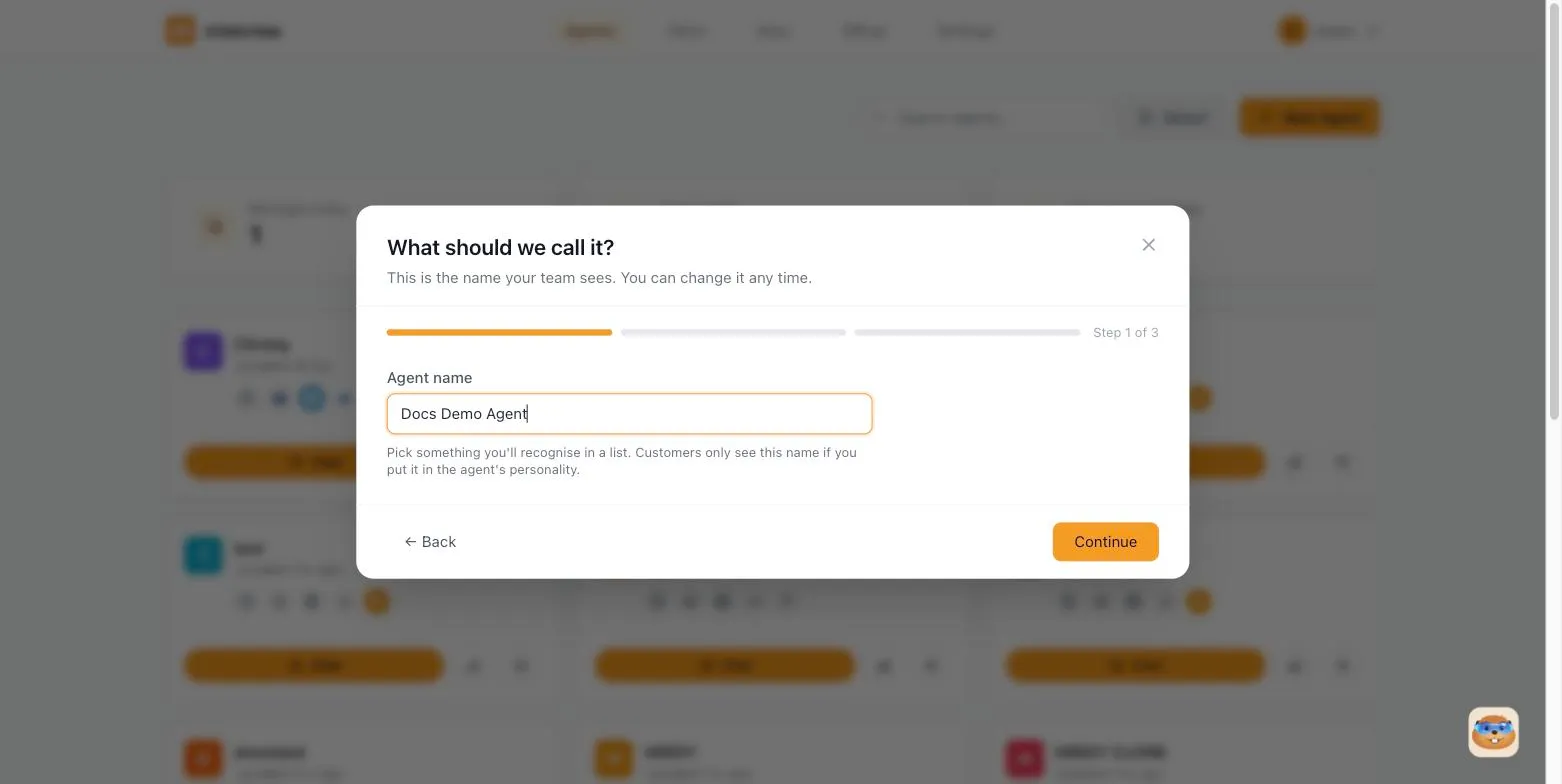
Click Continue.
-
Describe what the agent is for. This step writes your agent’s personality for you:
- Under Closest match, pick the template that’s closest to your use case.
- Choose whether the agent is working for a business or one person.
- Fill in the name field (your business name, or the person’s name) and, if you’re a business, what you sell or do. This field is optional for an individual.
- Optionally, pick a tone of voice.
- Click Write the personality. Minicrew drafts a personality based on your answers and shows it in an editable text box. Read it over and edit anything you like.
Click Continue once you’re happy with the text (or after skipping).
-
Set ground rules. These are things the agent should always or never do, in every conversation. Add one per line:
- It should always… greet people by name, reply in the language the customer writes in, or hand over to a human when asked, for example.
- It should never… promise a discount, discuss competitors, or share prices before checking with you.
Leave both boxes empty if you’re not sure yet. You can add rules any time from the agent’s Persona & Rules tab.
-
Click Create agent. Minicrew creates the agent and saves the personality and rules you entered.
That’s it. Your agent now exists, and you’ll land straight on its configuration page, ready for the next steps: connecting a channel, adding skills, or fine-tuning its persona.
What’s next
Section titled “What’s next”Your agent can already chat, but it isn’t connected anywhere your customers or team can reach it, and it has no special abilities beyond conversation yet. From here:
- Head to Configuring an Agent to see every tab on the agent’s configuration page — Channels, Persona, Knowledge Base, Skills, Tools, and more — and what each one does.
- Or, try out your new agent right away in Chatting with an Agent before connecting it to a real channel.